
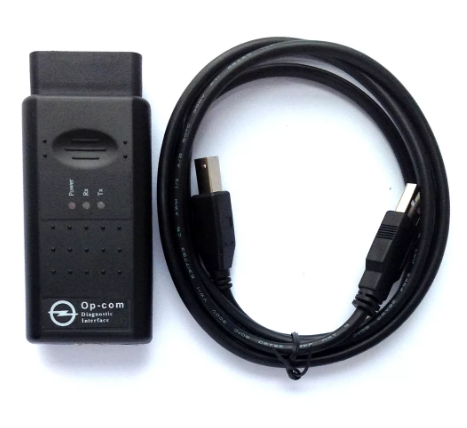
AUTO M3 Ltd OP-COM USB V2 Driver 2.04.06, 1.06.20
Driver package for Windows XP–10, 32-bit & 64-bit. Released Mar 13, 2008.
- Manufacturer
- AUTO M3 Ltd
- Version
- 2.04.06, 1.06.20
- Release date
- Mar 13, 2008
- Windows
- Windows XPWindows VistaWindows 7Windows 8Windows 8.1Windows 10
- Architecture
- 32-bit & 64-bit
- Size
- 1.4 MB
- Hardware IDs
- 1 supported (see list)
- Category
- Chipset › AUTO M3 Ltd
Download
OP-COM_USB_V2_2.04.06.zip
OP-COM_USB_V2_1.06.20.zip
OP-COM_USB_V2_Interface.zip
How to install
- Check that this is the right driver. Open Device Manager (right-click the Start button), right-click your device, choose Properties and look at "Hardware Ids" on the Details tab. The value should match one of the supported IDs below (more about hardware IDs).
- Extract it to a folder. If the folder contains
setup.exeorinstall.exe, run it as administrator. - If there is no installer, right-click the device in Device Manager, choose Update driver, then "Browse my computer for drivers", select the extracted folder (leave "Include subfolders" ticked) and click Next.
- Restart the computer and check that the device no longer shows a yellow warning sign in Device Manager.
Windows 11 is not listed by the manufacturer, but drivers made for 64-bit Windows 10 usually work on Windows 11 as well.
Supported hardware IDs
This driver package declares support for 1 device ID. Open an ID to see every driver available for that device.
| Hardware ID | Device |
|---|---|
| USB\VID_0403&PID_4F50 | AUTO M3 Ltd OP-COM USB V2 Interface |